Mac Installation Guide (Showing "App Is Damaged")
If the app is not signed and notarized with an Apple Developer ID, macOS may show a damaged-app warning the first time you open it after downloading from a browser. Follow the steps below.
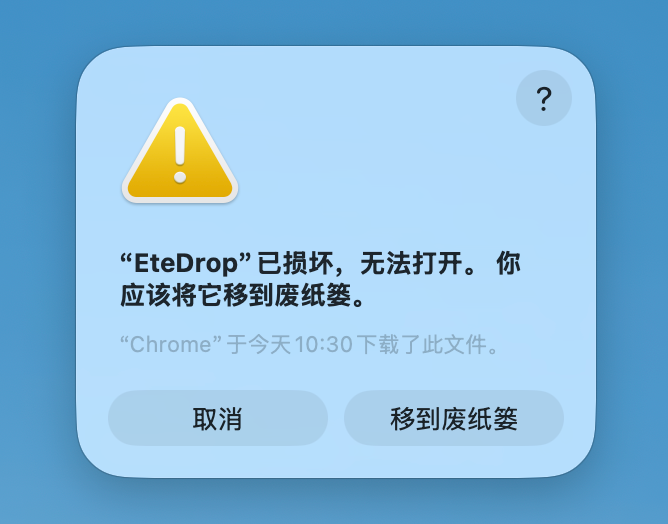
1. What warning you may see
When you double-click the app, you may see a warning like this (often mentioning it was downloaded via Chrome / Safari):
2. Remove the quarantine attribute in Terminal
Run this command in Terminal (replace the path with the actual location of EteDrop.app on your Mac; default location in Applications shown below):
xattr -cr "/Applications/EteDrop.app"
If typing the path is inconvenient, type xattr -cr first (keep one trailing space), then drag the app icon from Finder into Terminal to auto-fill the path, and press Enter:
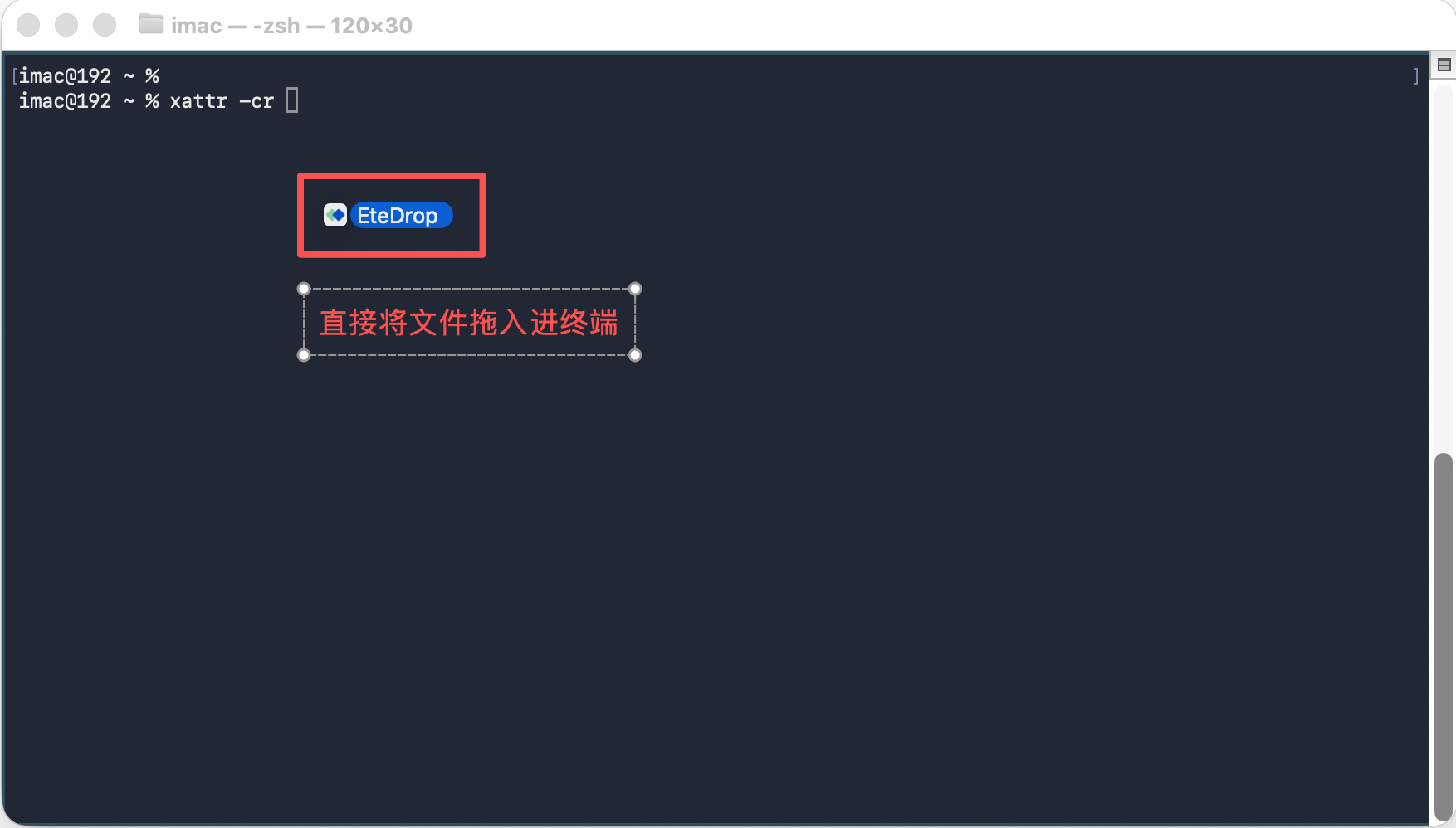
After the command finishes, go back to Finder and open the app again.
If your app is not in Applications, run the same command against the actual .app path.
3. "Nearby" keeps searching forever / no Local Network permission prompt
Starting from macOS Sequoia (15), Local Network permission is enforced more strictly. If the app is distributed without Developer ID signing and notarization, you may encounter:
- No system prompt asking to allow Local Network access;
- Or the app does not appear under System Settings → Privacy & Security → Local Network, so LAN discovery (UDP multicast) may be silently blocked and the Nearby list stays empty.
Please check manually:
- Open System Settings → Privacy & Security → Local Network.
- Find EteDrop (or your current app name) and turn it on.
- If the app is not in the list: fully quit and reopen the app, wait a few seconds, then check again. If it still does not appear, it may be due to unsigned distribution limits. Consider using an Apple Developer account for Developer ID signing and notarization so the permission can be registered normally.
Note: The Nearby list does not show this device itself; it only shows other devices on the same LAN. For self-testing, use two devices or a VM.
The macOS "Nearby" page in-app also shows a short hint message you can follow.